Mesh
Overview
PyMOL has a web-like, Mesh representation, as shown in the example images below.
Using the internal GUI, you may enable mesh by clicking the box with the letter S in it and selecting mesh.
Syntax
# show the selection, SEL, in mesh
show mesh, SEL

# using the 'as' keyword
as mesh, SEL
Example
select B, i. 40-110
show mesh, B
-
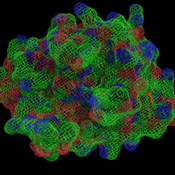 Mesh Representation Example
 -
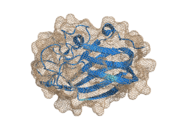 Mesh in ray_trace_mode,0
 -
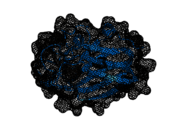 Mesh in ray_trace_mode,3; burnt and probably not what you're looking for.
 -
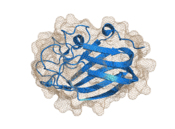 Mesh with width of 0.5, half of normal
 -
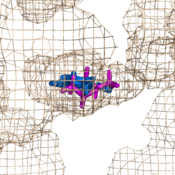 Using mesh is a great way to show enclosed pockes.


Settings
- cavity_cull
- mesh_carve_cutoff
- mesh_cutoff
- mesh_quality
- mesh_carve_selection
- mesh_grid_max
- mesh_radius
- mesh_carve_state
- mesh_lighting
- mesh_skip
- mesh_clear_cutoff
- mesh_mode
- mesh_solvent
- mesh_clear_selection
- mesh_negative_color
- mesh_type
- mesh_clear_state
- mesh_negative_visible
- mesh_width
- mesh_color
- mesh_normals
Notes
- Mesh doesn't ray trace well in set [ray_trace_mode]], 3. Try setting this to 0 if you mesh looks wonky.